Download Wikipedia and Search 4.4M Articles Offline

Download Wikipedia and Search 4.4M Articles Offline

 
Yes you read it right now you can download Wikipedia and search 4.4 million articles offline. No doubt its the number one online information system which is being used by millions of people across the globe on a daily basis. But the biggest hurdle in order to use it was that you need internet connectivity all the time in order to access it. Although internet has grown very much now a days with faster speeds and 24 hours unlimited connectivity but still you may need it in schools where internet is not available or in remote areas. The app will download the latest english version of Wikipedia with over 660+ wikis on your computer hard-drive.

How to Download Wikipedia

You need to use free open source XOWA application in order to download it on your computer. This application is just like torrent program which will download Wikipedia files while remain behind the scene so that you can do your normal work. Surly it will take days to download with your internet speed because its size is more than 100GB so you need to be patient. Also you need more than 120 GB free disk space on your computer in order to store 13.9+ million pages and 3.7+ million thumbnails. Also you need some latest generation processor in order to process the files as it will take at-least 5 hours of processing time on a faster computer.

Wikipedia in a Single CD

An Argentinian group has shrink the full contents of Spanish Wikipedia on a single CD(700MB in size) which you can download from the link mention below.

Download


Download Torrents in Full Speed without Seeders

Download Torrents in Full Speed without Seeders

 
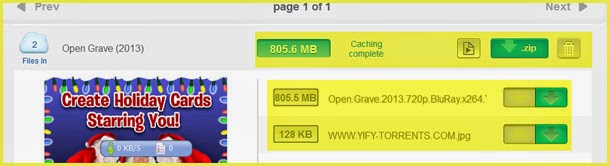
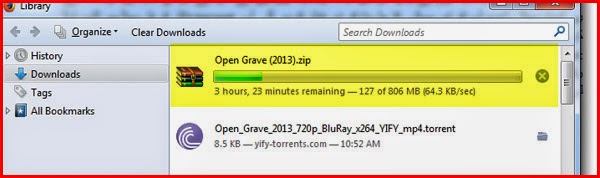
If you are sick and tired from the speed of your torrent files than now you don’t have to worry about this issue any more. today we will tell you the website through which you can convert the torrent file into normal file within seconds and than download that file directly to your computer at full speed. In this way you don’t have to worry about Seeders and Leechers because the website will first convert the file onto its server within seconds and gives you the power to download it like normal file.
Another benefit is that you can create free account on that website and save your files for future which means that if you need to re-download the files the file will be available in your account and all you need to do is to click on download button and here you go. Of-course this is a paid service but they are allowing you to convert files up-to 1GB in size free of cost(which is fair enough file size).
1. Visit the website Zbigz.com and create new account by clicking on the Signup button located at the top right corner of your screen.
2. Now click on New Member or sign-in into your account if you are old member.
3. Enter your real email and a password for this website and hit Register button.
4. After registering your account just download the torrent file from any website and upload it from the “Upload Torrent button located at the top of your screen”.
 
5. At this moment they are allowing you to convert files up to 1GB in size.
 
6. It will start download it on its own server and will give you the direct download link when its finish the process. Enjoy!


Download all Windows XP, 7 or 8 Drivers in Single Click

Download all Windows XP, 7 or 8 Drivers in Single Click

 
When you buy a new personal computer its comes with only DOS and you need to install some operating system on it like Microsoft Windows. Hardware and software work together like body and soul in humans. So without proper software your computer hardware will not work and ultimately you need to find the right drivers from billions and billions of websites available on internet. So its not any easy task and we all know how frustrating it will be to find it but fortunately we have found a free software for this task which will find the perfect driver of all your hardware parts in just one click.

The solution is 3DP Chip

The solution for all your headaches is a tiny little software of 1.2 Mb and its name is 3DP Chip which you can download from its official website. The best thing I like about this software is that it has another package for you with name of 3DP Net which will find the right LAN card driver the first time you install Windows without connecting the internet which is a huge bonus. It will do this by searching the driver database in system files and choose the right one for your Ethernet card.
Download 3DP Net
The good thing about this little package is that you don’t need to install it and by just double clicking on it you are ready to search. After that you just need to press the search button and it will find the all the necessary information in just single click.
Download 3DP Chip
On the other hand it can display all the information about your computer CPU, RAM, Motherboard, Hard-disk, Video card and sound card. This way you can also find the driver from the manufacturer website.


Install Windows in Just 5 Minutes by creating System Image

Install Windows in Just 5 Minutes by creating System Image

  
Installing Microsoft Windows normally takes 30 to 45 minutes depending on your system hardware and this is not the end because after this you need to install the system drivers as well as the software programs which you want to use on your computer. This is a hell lot of time consuming process as well as headache for you if you want to reinstall Windows. Often people try to find the solution for corrupt windows and slow system response but the thing is that after some time normally six months to one year you need to reinstall your operating system so that it performs fast as it was at the beginning.
No you can use the native feature of Microsoft Windows or use any third party software like Acronis which gives you the option of not only installing your operating system from scratch but it will install all the drives ass well as program which you have installed before. Unfortunately the native system backup option is not available for Windows XP so you have to install the third part software in the earlier versions.

1. Create Backup in Windows 7 & 8

Go to your OS Start button and type “back up your computer” in the search field. Now click on the program it find and you will see a new folder.
 
Click on “create a system image” link located at the left side of your screen and it will start scanning your computer for partitions and backup device.
 
No you have the option to save backup file on your computer hard-disk or on your portable device like external hard-disk, DVD etc.
 
After selecting the option click on start creating backup and wait for few minutes to complete the process.
 
Similarly when you have to restore the backup just go through the above mention steps and select the restore option.

2. Create Backup in Windows XP

Although you will find the System restore and Backup option in Windows XP as well but this is not that much effective as third party software like Acronis True Image which is a paid software but worth it.
So start your process by Downloading the Acronis True Image 2014 and install the program. After installation run the program and it will start scanning your system drives.
 
Choose your backup device and click on backup button to star the process. Normally this will take 10 to 20 minutes depending on the size of your partition as well as your hardware resources. Keep in mind that if you want to have fresh Windows installed in your computer than you need to do this step right after you install your OS for the first time because it will copy each and every file located on your partition.
 
You can even backup your system image file on cloud server so that you can access it any where in the world with ease. You don’t need to buy any extra cloud space because this software will give you 5GB of space free of cost and of course you can any time use there free online storage services as well.


Inspect and Monitor your Computer with ESET SysInspector Free Tool

Inspect and Monitor your Computer with ESET SysInspector Free Tool

 
When we buy a new windows system  it works perfectly fine and with full speed but the problem occurs when we install many software programs and in between all this unnecessary programs also install. Also when we use internet spyware and malwares effect our system performance which results in slow internet speed and networking problems. Some times slow computer performance can be a cause of Viruses and Trojans so its very difficult to asses our system and hence we have to give thousands of rupees to IT experts in order to check it. Well now you don’t need to speed any dollar or rupee as you can easily check your own system with just one click of a button.

The Solution is ESET SysInspector

Eset is one of the biggest Antivirus making companies in the world with so many great paid tools but this time they came up with a very impressive free tool named as ESET SysInspector. This tool is totally free of cost and let you monitor running processes in windows operating system, check registry content, start-up items and diagonise network connections.
You can even find the wrong driver files or corrupt system with just one click of button. After using this tool you can easily find the problem in your computer and hence remove it. This tool is available in both 32 & 64 bit versions and you can use it on Windows xp, Vista, 7 and latest 8 versions.

ESET SysInspector 32-bit version Download

ESET SysInspector 64-bit version Download


How to Run Windows 8 inside Windows 7 or XP

How to Run Windows 8 inside Windows 7 or XP

 
Windows 8 is the latest edition of operating system from Microsoft and if you are still using the old Windows XP than you should move to this new OS because of security concerns. Although Microsoft is still providing the support for older version but one should not take any chance to lose precious data. Again if you love the previous versions and don’t want to remove it than don’t worry because with the help of some basic tools you can easily run Windows 8, Linux inside Windows 7 or XP and take benefit of both world’s.

VMware Player

VMware Player is a very light and easy to use Windows Virtual Machine software which will allow you to easily run any version of Windows operating system easily within your existing OS. Although it’s a licensed software and you need to buy it if you want to use it or commercial purposes but it’s totally free for home and personal use.
Download VMware Player
After installing the software it’s very easy to use it. Just open the main program from main menu and you will see a simple interface like the one mention below. All you need to do is to load the ISO image of the operating system which you want to run. You can create the image for your self or download from the links mention below.

Download Windows XP ISO Image

Download Windows 7 ISO Image

Download Windows 8 ISO Image


How to Install Windows from USB Flash Drive

How to Install Windows from USB Flash Drive

 
Installing Windows from compact disk or DVD is the thing of the past and future laptop will also ship without any CD/DVD Rom. We all use it for several years it was far better than the floppy disk option but as the floppy drive was remove from this world few years back now it’s time for CD/DVD Rom. With the ever going increase of USB flash drives even big companies are starting to provide all drivers, software on internet so that users can download them and save it on hard drive or in USB drive.

Things you need

  • Windows installation Disk/iSO image
  • Empty 4GB Flash Drive
  • WintoFlash Software
First of all visit the official website of WintoFlash and download the latest free software from the link mention at the top of the page. After download unzip the file in a new folder any where on desktop.
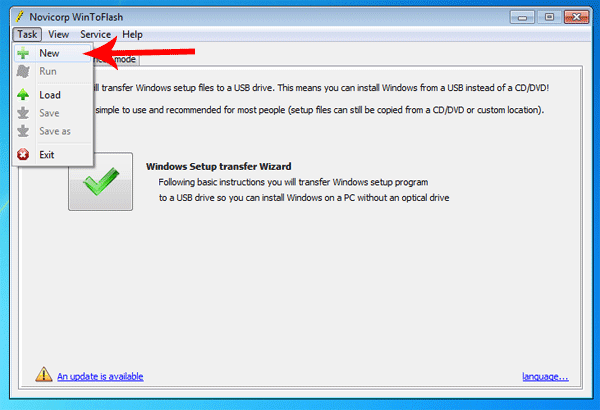
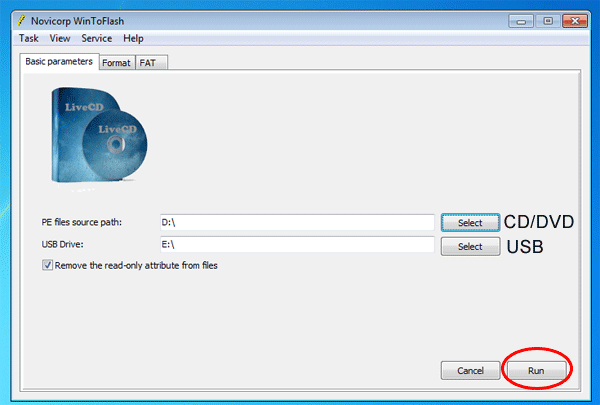
Double click on WinToFlash exe file located in the unzip folder and select the new task as mention in the picture below.
 
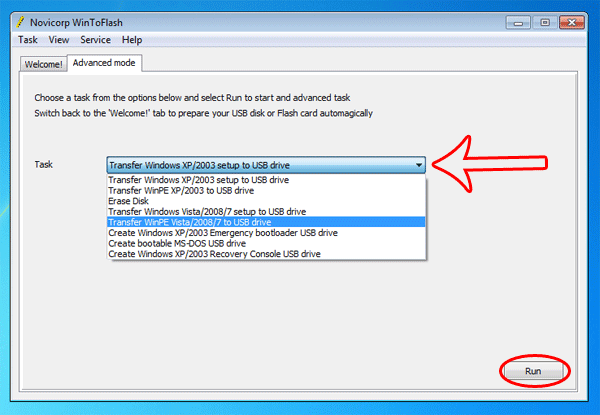
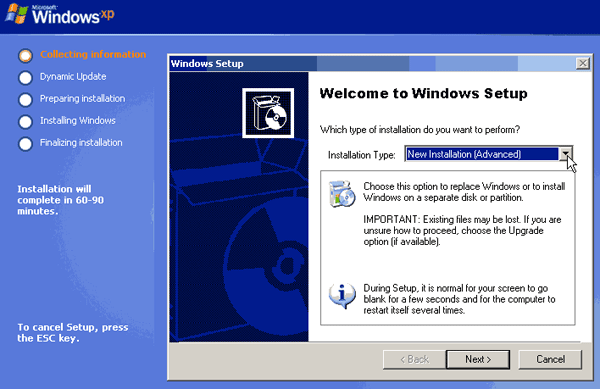
Next screen will show you the options that which task you want to perform. Simply select your desired operating system and in my case I select the Windows 7 to USB drive option.
 
Now the most important step and that is to choosing the actual CD/DVD or iSO image link. After that select the destination USB drive link where you want to copy all the files. Remember that your USB drive must be empty because this software will format the drive first. Click on Run button and sit back and relax as it will take some time to create your USB boot able drive.


Install all Windows Softwares in just one Click

Install all Windows Softwares in just one Click

 
After installing fresh windows the biggest problem we face is to install system drivers and software which we want to use. Again if you have compact disk of your computer drivers or in local disk drive than you are lucky otherwise you can also install windows drivers in just one click with the help of this software. Now after installing drivers computer is useless without software like Microsoft Office, Flash, Google Chrome browser, Mozilla Firefox, Drop Box, Avast Antivirus, Winrar, Java etc. So you need to first download the latest version of these programs from internet and install each software one by one manually. This is really a very painful process as it takes lots of time and effort.

The Solution is Ninite.com

The solution to this big problem is Ninite.com which allows you to select all your desire software from the main website page and create a mini installer package from it. Download the installer package and install it in your system. Run the software and forget about any thing else. You are done, rest is done by this tiny little software package which not only downloads the latest edition of all your desire software but also install it so you don’t have to do any thing.
Also this is not the end of world because the installer package will remain on your system and when ever a new update will be available it will notify your via a pop up message on your task bar or you can set it to automatically as well.


Repair Windows with Just one Click

Repair Windows with Just one Click

 
Microsoft Windows have many known issues and problems like registry errors, file permission problems, Internet Explorer, Windows Update, Windows Firewall settings which can be solved easily. After installing the fresh operating system your computer work like a super computer but after few days you notice that your system is slowing down day by day. This mainly happens due to viruses or software’s you install in your system. Virus problem can be solved by any Antivirus or Internet security program but what about registry errors and corrupt windows files.

Windows Repair (All In One)

Tweaking.com has a very small in size windows Tweak software which can do wonders with just one click of a button. You can download the Windows Repair software from here. After download install this software and it will reset the settings of almost every module of your computer operating system. Normally the settings are changed by programs you install like Anti-malware, Antivirus, Registry editors etc which may some time result into crash of your system. With this amazing free tool your can rest all those settings which result in smooth Windows performance.


Use Smartphone as Mouse to Control your Computer Screen

Use Smartphone as Mouse to Control your Computer Screen

 
With out mouse and keyboard computer is useless, that’s why we see lot’s of improvements when it comes to durability and advancement. First we used to have wired peripherals and than wireless but now we are all fed-up from these things and wanted to have some thing different. We all have smartphone in our hands so why not take advantage of it and use ti with our computer. Well this is possible now and no matter which smartphone you are using (Apple iOS or Google Android) you can connect it with your laptop or computer having Bluetooth or wireless network card.

For Apple iPhone, iPad, iPod

For this to work you need to install the Logitech Touch Mouse Server software on your computer and Logitech Touch Mouse iOS App on your Apple device. Please note that server application is only available for Windows 7 but for both 32 bit and 64 bit versions. After installing the software you need to connect them via Bluetooth or Wi-Fi. This program is also available for Apple Macintosh.
 

For Google Android

Fortunately same app is available for Android devices as well and the process is almost the same. You need to download and install gPad client Server on your computer and gPad client app on your Android device. Pair the devices with Bluetooth or Wi-Fi and if it asks for your computer ip address simply type it and see the magic.


Change the Shutdown button Action in Windows

Change the Shutdown button Action in Windows

 
How often you click on Windows Shutdown button mistakenly when you want to restart or log-off the system. It feels very bad and sometime you may lose some data or running programs. Microsoft redesigned the Shutdown button so that users can quickly access the options like Hibernate, Log Off, Switch User etc or can quickly Shut Down the computer but this can be very annoying when you are in a hurry. So why not change the value of our Windows Shut Down button so that it will perform the action each and every time due to our desire.

How to Change the Value

Right click on your Windows Start button/Logo and select properties.
 
You will see a new dialog box with Start menu options. Here you can assign different values to your main button like Hibernate, Log Off, Switch User, Sleep and Lock. Select your desire value and click on apply settings.
 
Every time you press the Shut Down button it will perform the action you selected from the above steps which means no more unnecessary shutdowns.


How to Backup Windows Drivers and Restore

How to Backup Windows Drivers and Restore

 
After installing fresh windows the biggest problem we face is to install the drivers so that our system run at full potential. But as we all know that with so many hardware changes and software updates finding the right driver is a very difficult task. Although you can find and download system driver for windows via this software but there is another way which can save lots of your time.

You can very easily backup all your system drivers with just few clicks and it will create a file which you need to save on your hard-drive or on USB drive etc. When ever you wanted to install the drivers just restore it from that file and you are done.

Use DriverBackup! Software

DriverBackup is an amazing little utility which can backup all your windows drivers in just few clicks. You can download DriverBackup from this link and install it. After installation just run the program from main menu and click on program icon. You will see a very simple interface where first you have to sect the drivers you want to save and than click on backup button. There you go it will create a file which you need to save for future installations.


Viper All in One PC with UPS

Viper All in One PC with UPS

 
Summer season is on and every body should be ready to face 8 to 10 hours load shedding in Pakistan. If you have a desktop computer than it’s a bad news for you but if you are lucky enough and have laptop than you don’t need to worry. But if you are one of those who likes to work on desktop computer with heavy graphics card and fast hardware than you should read my UPS guide for Pakistan in which I tell you how to choose a good UPS for you. But there is an another solution which can solve all your problems.

Viper All in One PC with UPS

All in One PC getting popular day by day due to their less size but at the same time no compromise on performance. CPU and Monitor are built into one chassis and latest All in Ono’s have also touch screen which makes them even more demanding. But still it lacks the backup power like laptops have but fortunately Viper technologies from Pakistan have solved this problem as well.
Viper All in One PC is designed in a way that you will feel that you are using laptop but with the benefits of a fast desktop computer. It’s built in UPS makes sure that you will work continuously even light goes on or off for 45 minutes. Like laptop it will have a webcam, Speaker and mic which makes it perfect machine for everyone. Comes with latest 3rd generation Intel Core-i processors and DDR3 ram it will perform almost 95% of your daily tasks easily.


All in One Security Software for Windows, Mac and Mobile OS

All in One Security Software for Windows, Mac and Mobile OS

 You may have downloaded and installed many antivirus and internet security software’s before but surly that software will not work on mobile operating system. Also different security software are made for specific operating system like Windows, Mac so you can only install it on one platform. So if you own different computer and gadgets with different operating system then you need to purchase security program for and every device which may empty your pockets. So why waste our money when you have the option of free security product and that too for each and every platform.

360 Internet Security

360 internet security is the first free antivirus software on internet which is available in all operating system of the world. You can install it on Windows Platform, Apple Mac and on any smartphone running iOS or Android. This is very cool feature and that’s why this software is getting popular day by day and million of people are installing it from around the globe.
Not only this but they also provide 360 Vault for your smartphone so that you can store your data which is only visible to you. In future they are working for their own 360 browser and total security software which will really revolutionize the world.

How to Factory Reset your Windows Computer

How to Factory Reset your Windows Computer

 
When we first install windows it works like a super machine but soon after installing some programs and using internet it tends to get very slow. Mainly this is happens because of viruses, malwares and software which are not written in a right way. These software change the registry settings of windows operating system and hence causes many problems like slowness, restarts, system halt and no response system etc. So if you want to factory reset your windows computer than you need to do the following steps.

Windows XP

Windows XP comes with an option of backup and System Restore but the problem is that you have to create system point first if you want to restore it. If you haven’t any than you need to reinstall it from scratch. In case of system restore point created just select that date where you want your system and click on restore button.
 

Windows 7

In Windows along with system restore point you have the option of system repair through Windows Recovery Discs. This will save lots of your time and effort because you only need to provide the Recovery Disc at the boot time and reset will be done by this. Download Windows 7 system repair disks from official Microsoft’s online service at DigitalRiver


How to Create a CD containing the Windows XP Recovery Console

How to Create a CD containing the Windows XP Recovery Console

 
Microsoft recently ends the support for Windows XP which means that you will not get the security updates if some one find the loop hole in this operating system. Although some people are saying that Microsoft only stopped the support for home consumers only and they are still providing the updates for business organizations. So what will you do if you lost your Windows XP Disk or if you don’t have any than you will be in trouble.
Microsoft gives you an option to restore your system via floppy disk drives but the problem is that mostly computers have no floppy drive now a days and it requires 6 floppy disks to recover a system. Which means that if one of your disk is damaged than you cannot complete the process.

Windows XP Recovery Console

Good news is that Dean Adams has created a bootable CD for Windows XP which contains content from bootable floppy disk. He merges all the data into a one single batch file so that you can easily write in onto any compact disk. Just download the file from the link mention below and write in onto any CD.

Download Bootable CD

Download Windows XP Service Pack 3 (Official Microsoft Website link)


Add Voice Welcome Note in your Windows Startup

Add Voice Welcome Note in your Windows Startup

 
It’s amazing that over the years Windows have gone through many phases yet it still lacks many cool features. For example it doesn’t have any option in control panel to add voice command or welcome note so that when ever you start your system it will read the sentence for you. Human nature is very strange specially each and every person on this earth wants to have customized phone, computer or even operating system. So adding the voice welcome note will really surprise your friends.

Things we need

  • Notepad
  • Visual Basic Script
Surprisingly adding the voice welcome note in your windows operating system is very easy. Just open Notepad and enter the following Visual Basic code in it.
Dim speaks, speech
speaks=”Welcome to the World of Windows Mohsin Ali Waheed”
Set speech=CreateObject(“sapi.spvoice”)
speech.Speak speaks
Replace Mohsin Ali Waheed with your name and save the file with name “Welcome.vbs”. Make sure you write the name in quotes so that windows save the file on desired extension.
Now you need to copy the file in windows system folder so that it will use it every time you start operating system.
Windows XP = C:\Documents and Settings\All Users\Start Menu\Programs\Startup
Windows Vista, 7, 8= C:\Users\ {User-Name}\AppData\Roaming\Microsoft\Windows\Start Menu\Programs\Startup


Login into Windows & Mac Computer via Face Recognition Feature

Login into Windows & Mac Computer via Face Recognition Feature

 
Face Recognition feature was introduced in computers few years back but still it operating system companies have not yet adapted this technology for login purposes. At this point of time you can login into your Windows or Mac computer by entering password or via USB containing the password. The problem with passwords is that any one can see your password while you type it and hackers can also hack it without your permission. So we all need some kind of new technology which is difficult to break.

KeyLemon – Face recognition software

KeyLemon is a free Face recognition software which can used to login in your computer. The best thing is that it works for both Windows and Apple platform. You can download KeyLemon software from official website for free. Make sure you download only the appropriate software according to your operating system.
Install the software with default settings and run the program from your windows main menu. Now it will automatically start your computer webcam and face model creation process will begin. You need to make sure that your face is straight, still to your webcam and light in your room is good. Wait until the green tick is appear which means that face model capture process has done successfully.
In the next step it will verify the face model and again you have to lineup with your webcam so that it can verify your identity. Upon successful verification give your profile a name and set the password so that you can login with double features.
Now log-off from your system and lineup your face straight to your webcam to see if it works for you.


How to Automate Tasks in Windows

How to Automate Tasks in Windows

 
Microsoft introduced the Macro Recorder feature in it’s first version of Windows 3.1 back in 90′s and this was an awesome tool back then. As the time passed more and more third party companies have jumped into this field and now it’s very easy to record your tasks ans repeat them. We all have a habit of doing same things in our life again and again like signing in into our email account, opening many tab windows in web browser, renaming countless files, cropping images etc. These little tasks can take huge amount of precious time but now you don’t need to repeat all windows tasks again and again.

WinParrot

We all know that Parrot is an animal which will repeat what you do infront of him. Same is the case with WinParrot, it’s a tiny little windows program which will repeat all task which you will record infront of it. So if you wanted to start antivirus scan process automatically without being physically present infront of your computer than this software is for you. This is just the one example I have quoted here but the possibilities are unlimited. You can automate any thing you like and these little things can make your life easier than ever before.

Download WinParrot


Windows 8 Like App Launcher for Windows Vista and 7

Windows 8 Like App Launcher for Windows Vista and 7
 
Windows 8 is getting more and more popular day by day due to its unique design and ability to run on touch devices as well. The main focus is obviously the metro style front screen with lots of apps running live in the shape of tiles. In Windows 8 the big thing missing was start button and menu but thanks to Microsoft they provided the start button in Windows 8.1 version. But if you are one of those who don’t want to update/change your previous operating system like Windows Vista or 7 but want to have the Windows 8 style app launcher than there is a free solution for you.

WinLaunch

WinLaunch is a free tool which will convert your Windows Vista or 7 Desktop into Windows 8 like app launcher so that you can enjoy the taste of both world’s. You cannot install Windows 8 apps in previous version so you have to place the shortcuts of different programs you are using in your computer like Microsoft Office, Adobe Photoshop, Mozilla Firefox, FileZila, Google Drive etc.
After downloading and installing WinLaunch you don’t need to find the program in complex Windows Menu and your favorite program is just one click away from you. In order to dock your favorite programs all you need to do is to Press “F” key on your keyboard and drag the icon of the program you want to place. You can any time group your favorite programs like all music related shortcuts into one group etc.